 NimbleMap
Workflow 1 · Free
Typhoons: the strongest storms
Since 1980, which storms were the fiercest, and where did they go? You will open every tropical cyclone track on record since 1980, colour them by ocean, look up Typhoon Haiyan, and keep only the Category 5 storms.
-
Open the example
On the card at the bottom of a new window, click Examples and choose Typhoons and hurricanes. (Any time later: File › Open Example › Typhoons and hurricanes.)
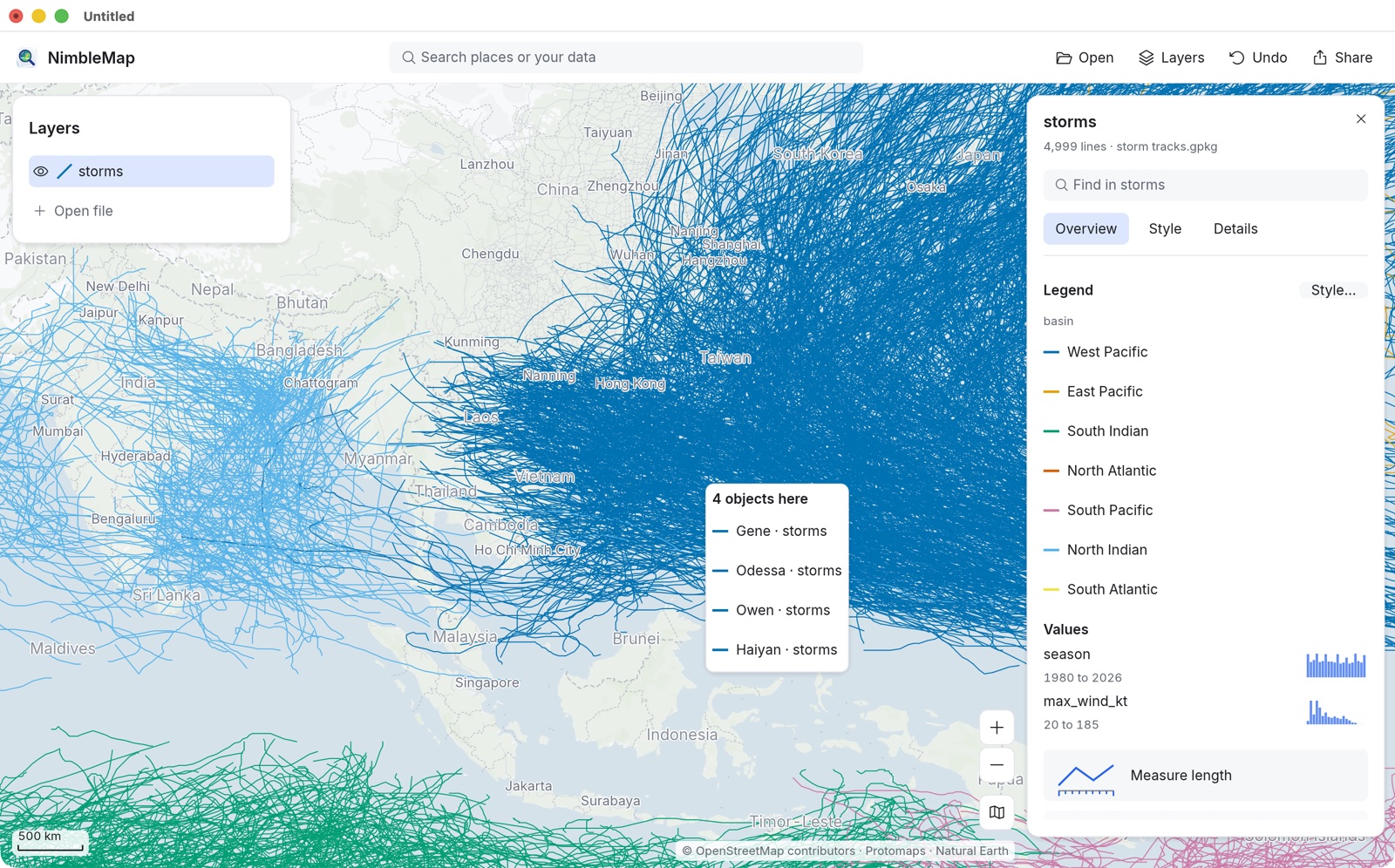
A layer called storms appears in the Layers panel, and its card on the right reads 4,999 lines · storm tracks.gpkg: one line per storm.
-
Colour the tracks by ocean
On the layer’s card, open the Style tab and click the By basin tile. The Legend now lists the basins: West Pacific, East Pacific, North Atlantic and so on.
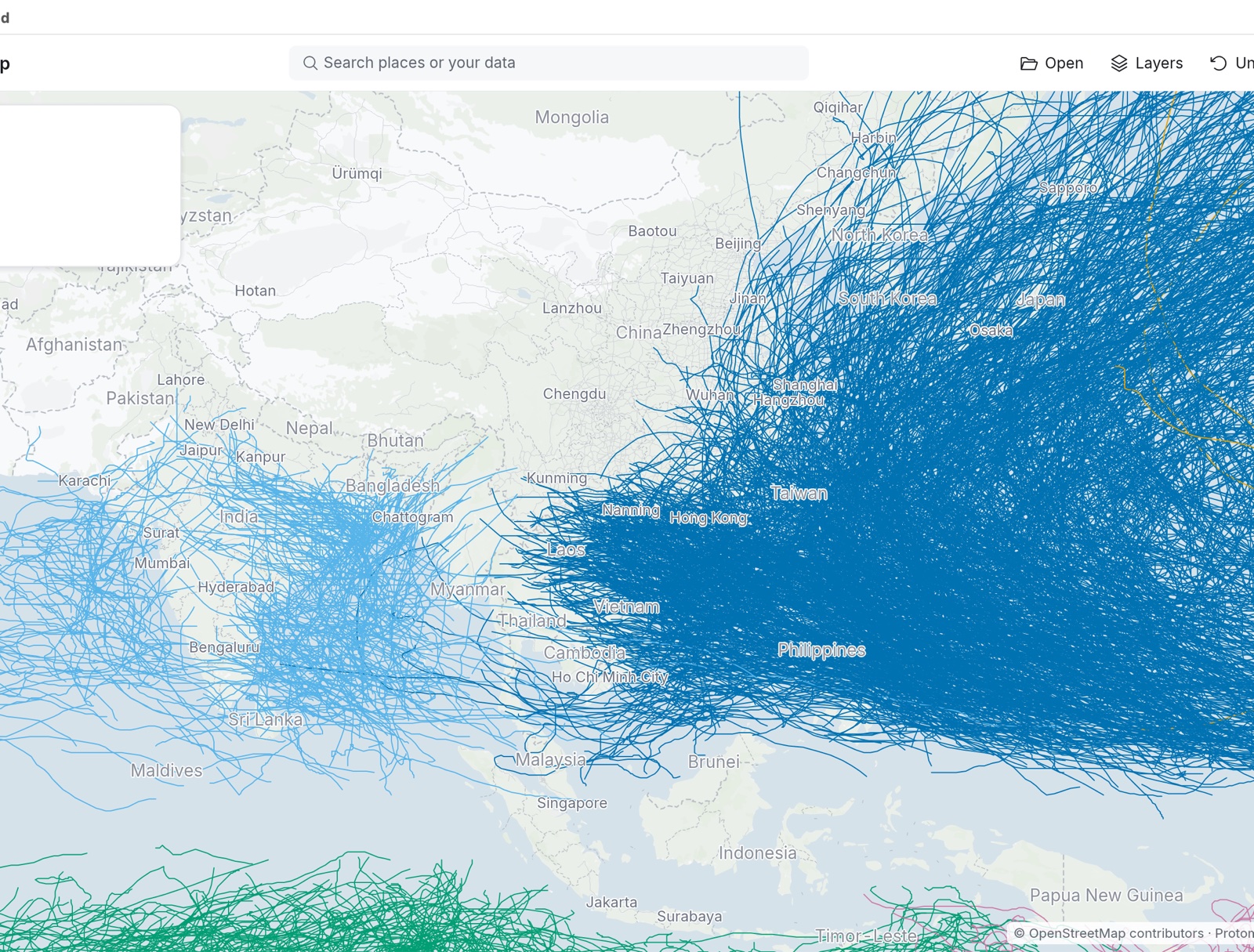
The West Pacific (dark blue) is the busiest basin on Earth. The typhoons that reach Hong Kong, Shanghai, Taiwan and Japan all start here. -
Click a storm and see where it stands
Click any track. Where several tracks overlap, a small list such as 4 objects here lets you pick one; choose Haiyan · storms.
The card now describes Typhoon Haiyan (2013), and before offering any tool it tells you how Haiyan compares: its max_wind_kt of 170 knots is higher than 99% of 4,547 storms with values. The little strip beside each line shows where it sits among all the others.
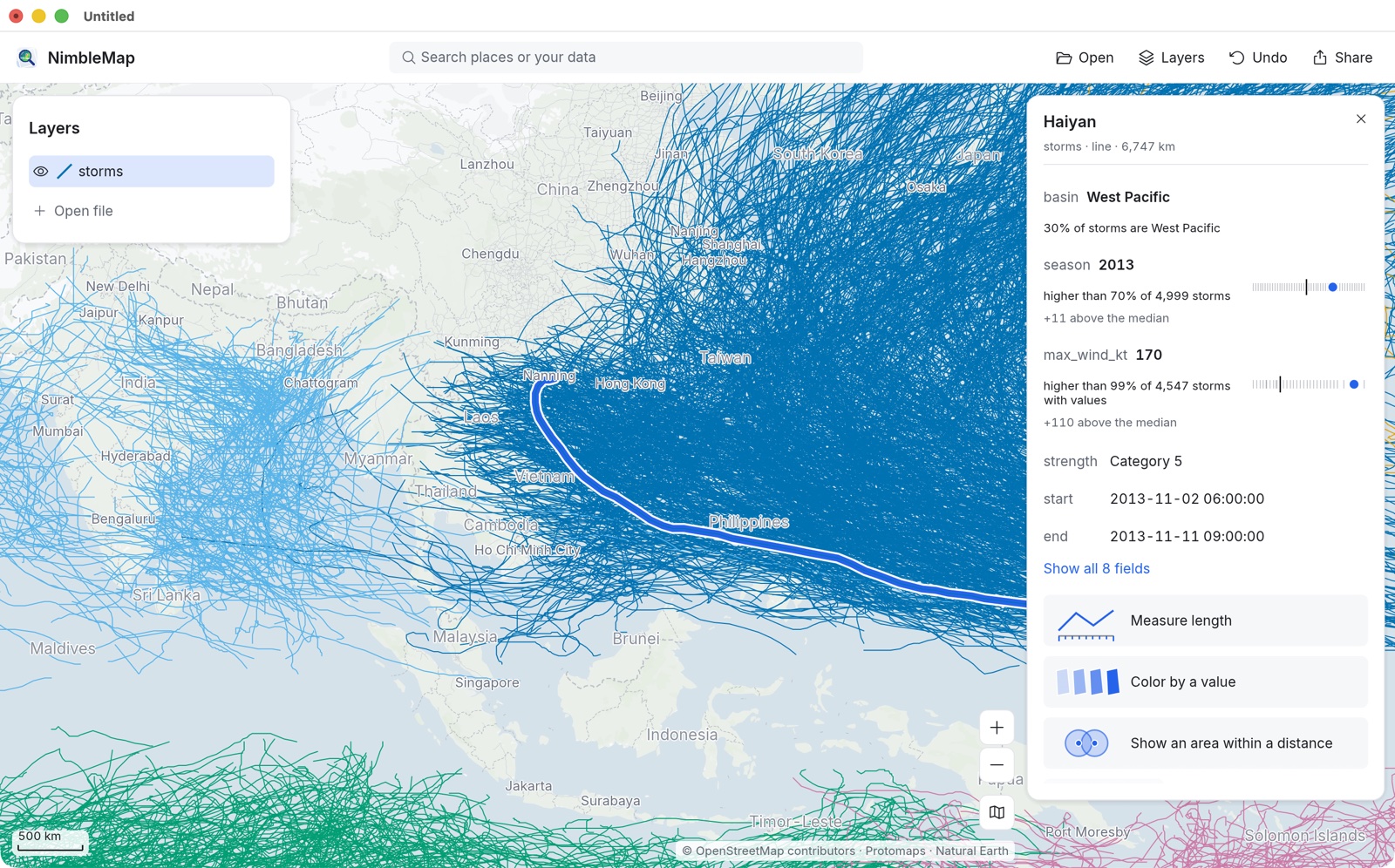
Haiyan crossed the central Philippines in November 2013 as one of the strongest storms ever to make landfall. Looking for a storm by name? Type it in Find in storms at the top of the layer’s card, or in the toolbar’s search box, which lists matches under Your data.
-
Colour by a value
Click Color by a value on the card. The Style tab opens with the tracks coloured by a number from the data. To colour by wind instead, open the Color menu and pick max_wind_kt; try the Heat palette. Groups splits the values into a few classes; Smooth uses a continuous ramp.
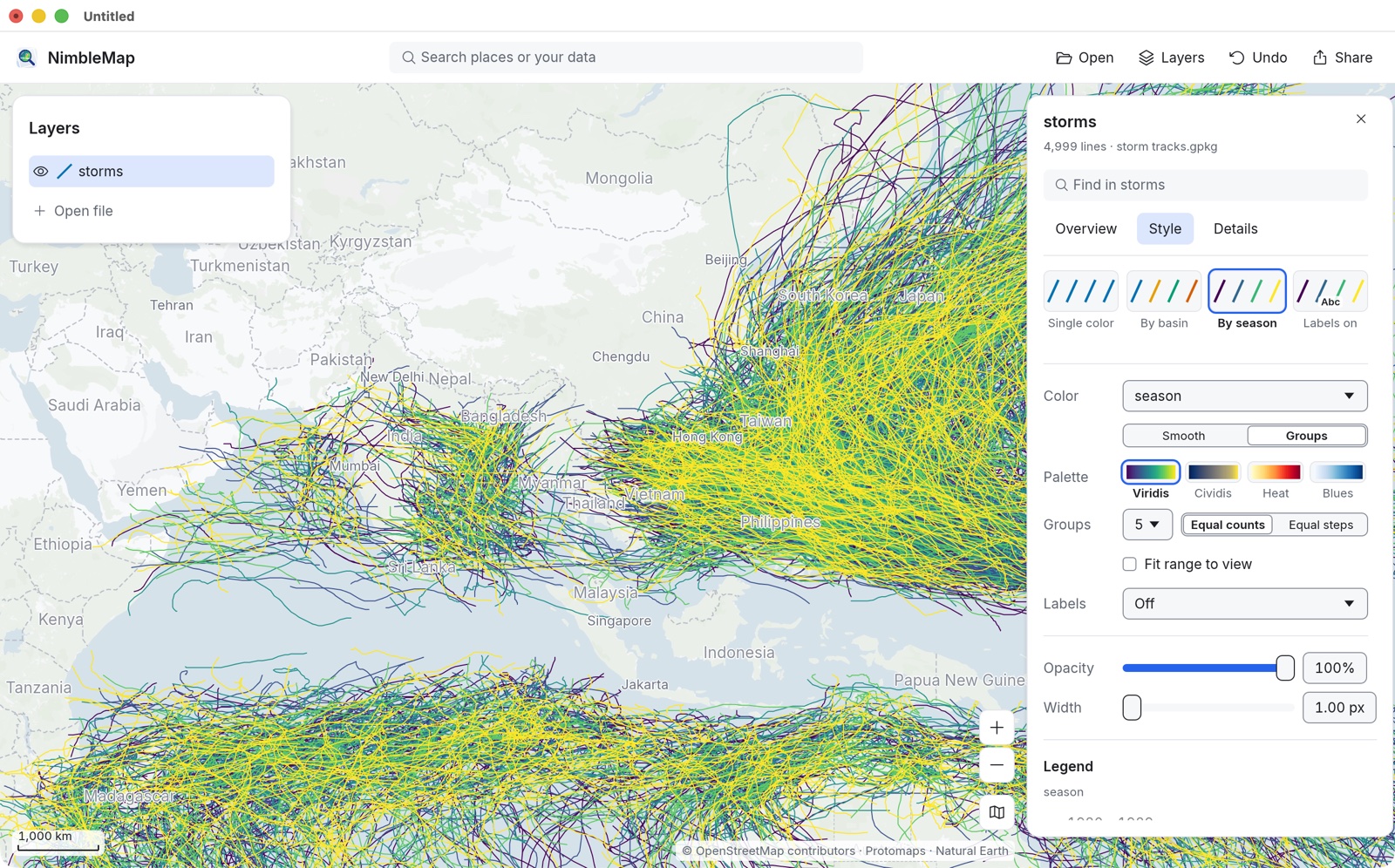
Here the colour follows season (the year). The Color menu switches it to any other field. -
Open the table
Click View in table at the bottom of the card. The table slides up from the bottom of the map: one row per storm, one column per attribute. Selecting a row selects the storm on the map.
-
Keep only the Category 5 storms
In the table, click + Filter. A sentence appears for you to finish. Set it to Show storms where strength is any of Category 5. Before you commit, it says how many match: 228 match. Click Apply.
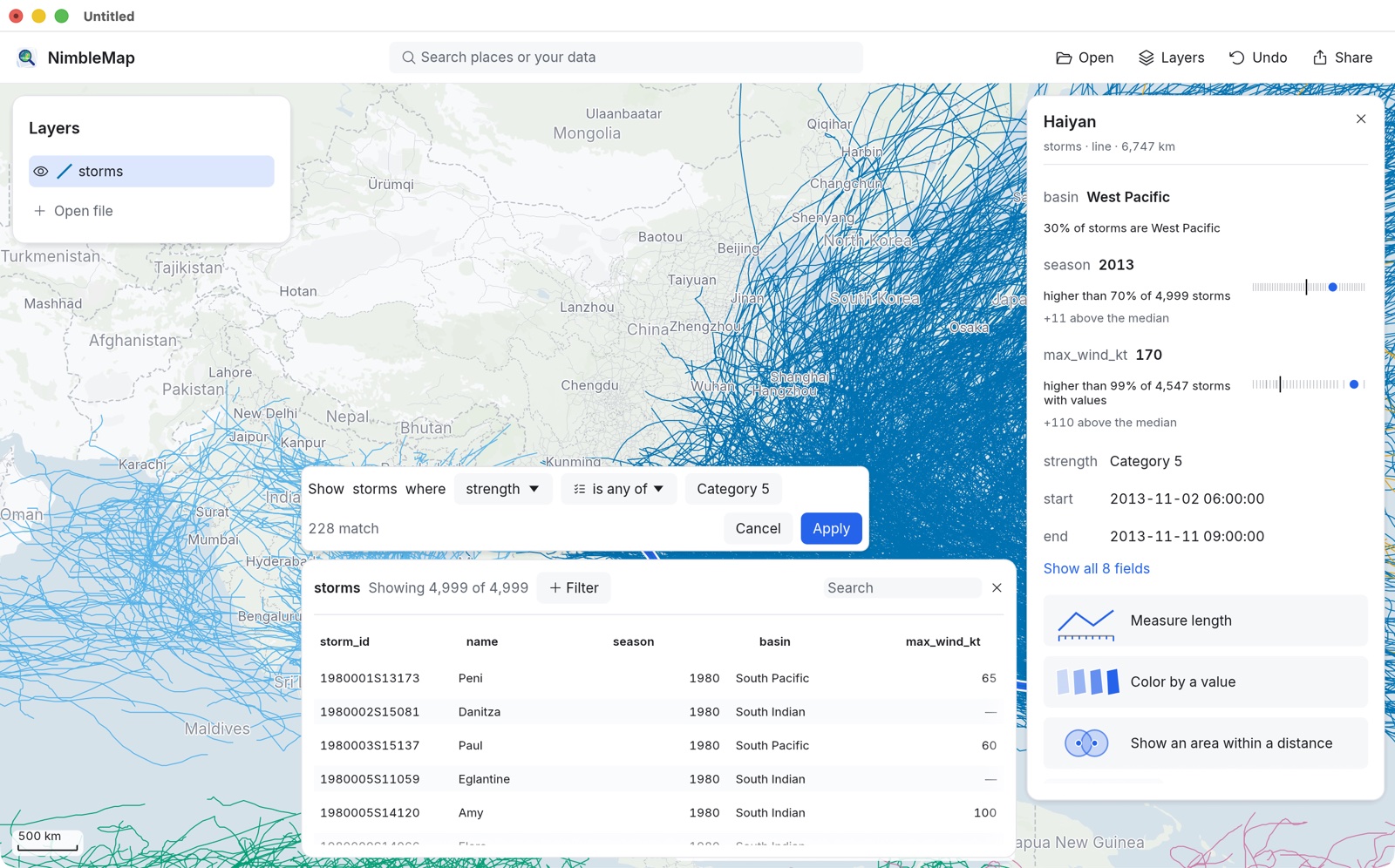
The other 4,771 tracks are hidden, not deleted. The table says Showing 228 of 4,999, the filter appears as a chip you can remove with ×, and the layer row shows a funnel. The card now compares Haiyan with the filtered storms only: tied 2nd highest of 228 filtered.
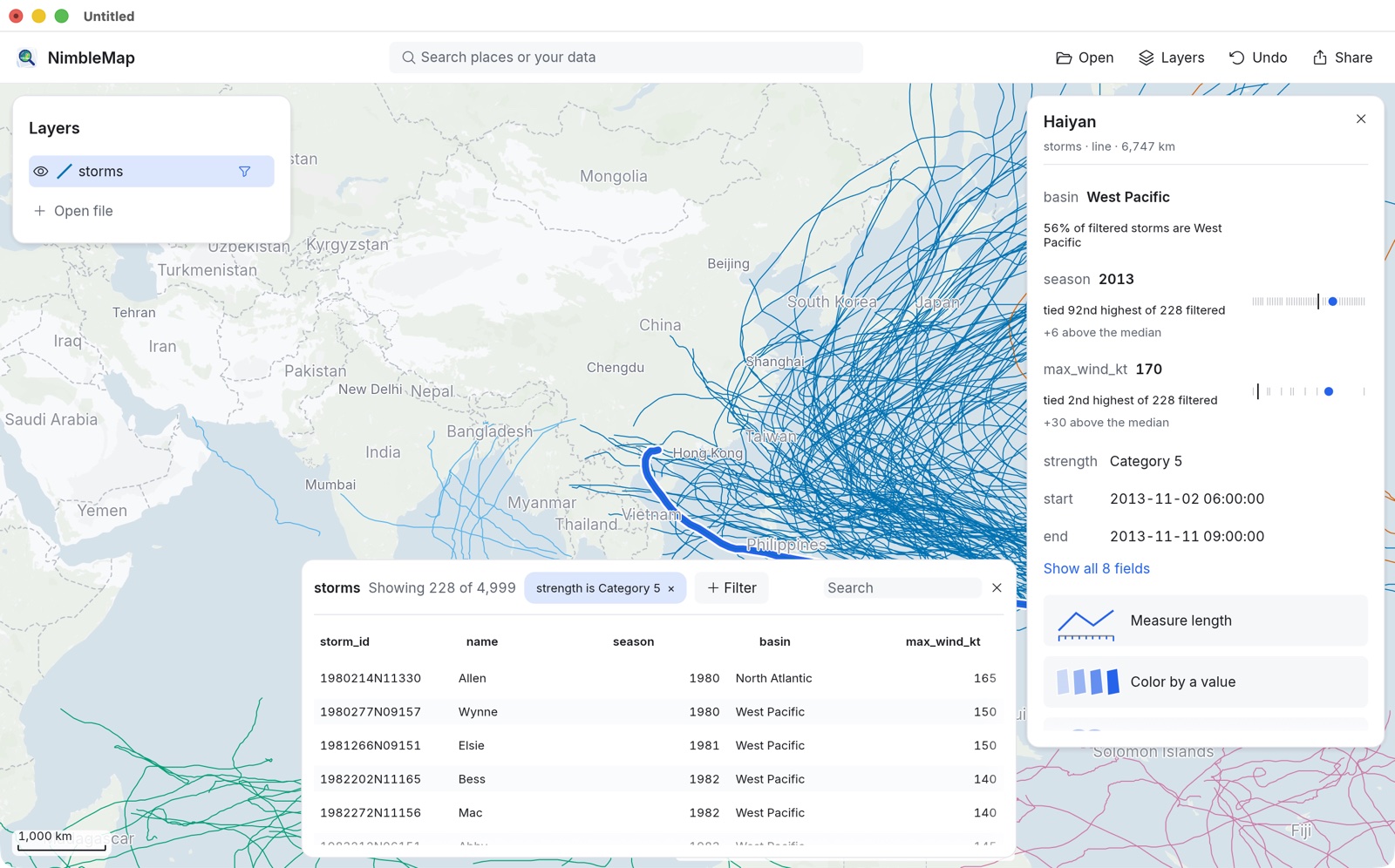
Category 5 storms cluster east of the Philippines and curve towards Taiwan, southern China and Japan. To compare, add a second condition (for example basin is any of West Pacific) or remove the chip and try North Atlantic. Every change is one step of Undo.
-
Which cities are hit most often?
With the filter on, zoom to the coast you care about (type a city such as Hong Kong or Manila in the search box) and you can see which places sit under the densest tangle of tracks. Counting the storms that passed near each city is an analysis: it creates new data. In NimbleMap that is what Pro is for.
NimbleMap Pro. Cards gain analysis buttons such as Measure length and Show an area within a distance of each, and the Ask about your layers box takes a question in plain words, for example “Show the area within 100 km of Hong Kong”, followed by “Keep the part of the storm tracks inside it”. Each answer is previewed on the map with its recipe, and nothing is saved until you click Keep.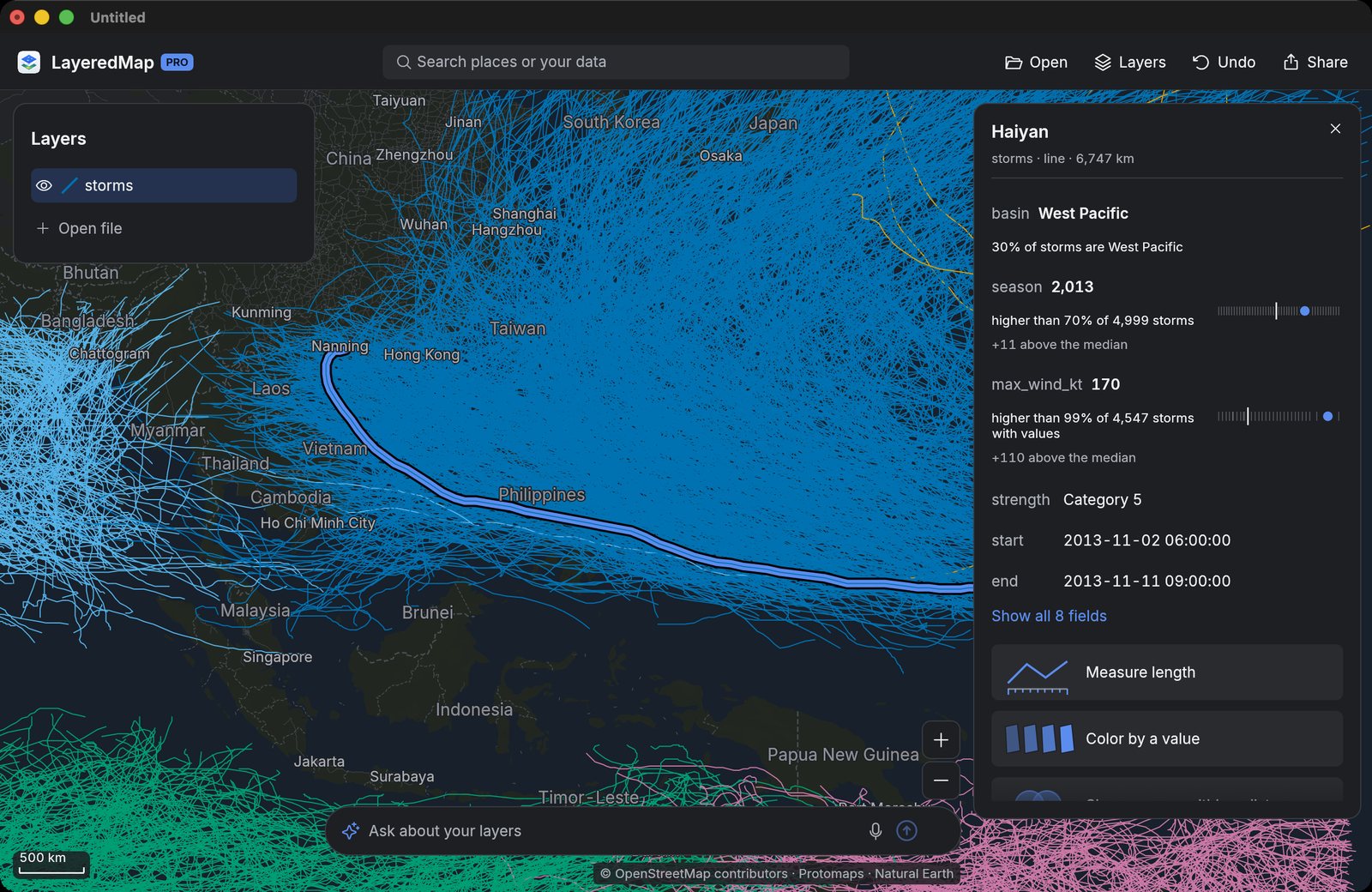
NimbleMap Pro: analysis buttons on the card and the Ask box at the bottom.
Data: NOAA NCEI IBTrACS v04r01 (Knapp et al. 2010, doi:10.1175/2009BAMS2755.1; Gahtan et al. 2024, doi:10.25921/82ty-9e16). Basemap © OpenStreetMap contributors, Protomaps, Natural Earth.