 NimbleMap
Help
Start with a story, not a toolbox
Each workflow below uses an example that comes with the app, so you can follow along right now. Every step uses the buttons exactly as the app labels them.
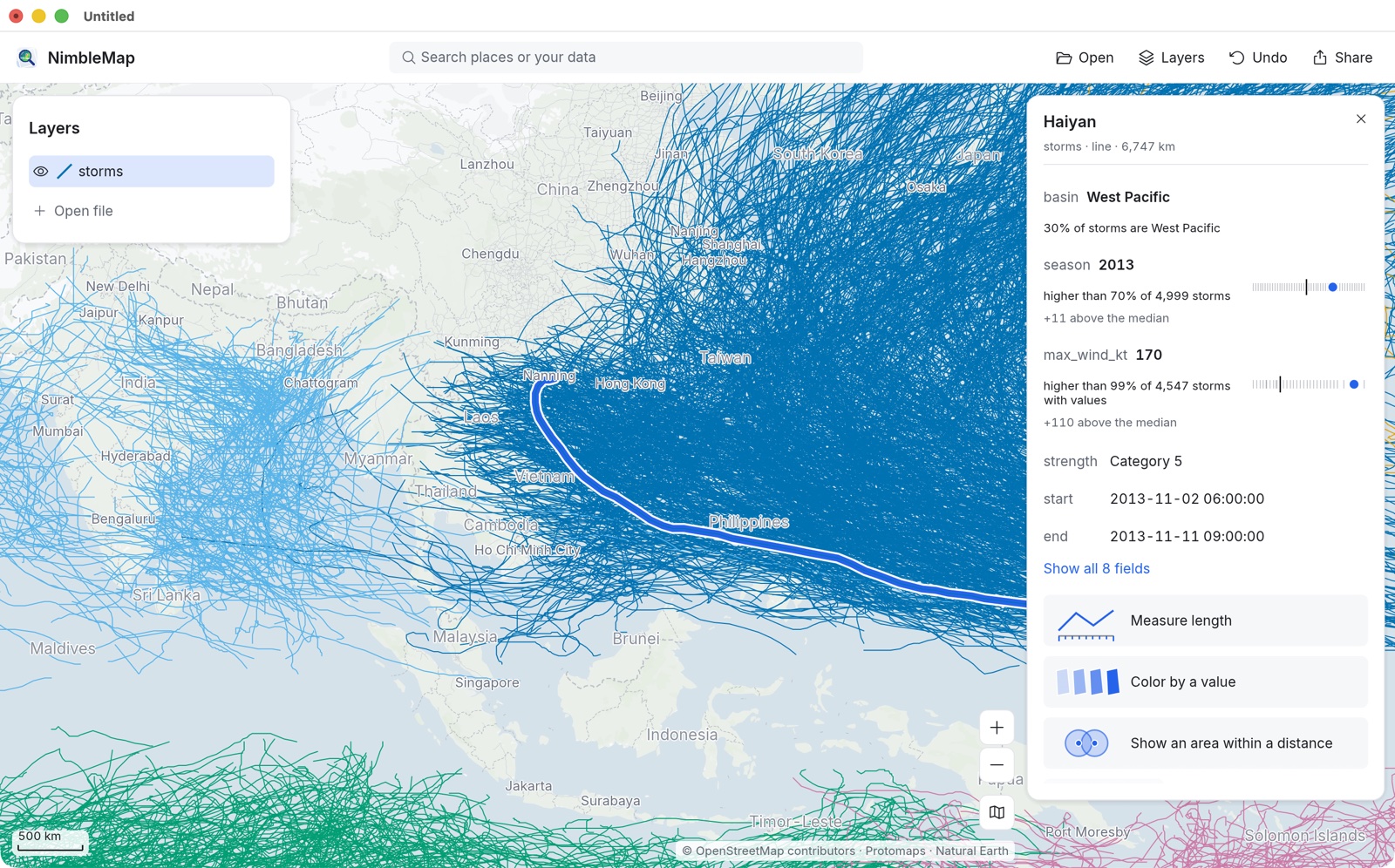
Typhoons: the strongest storms
Open 4,999 storm tracks, find Haiyan, see how it ranks, and keep only the Category 5 storms.
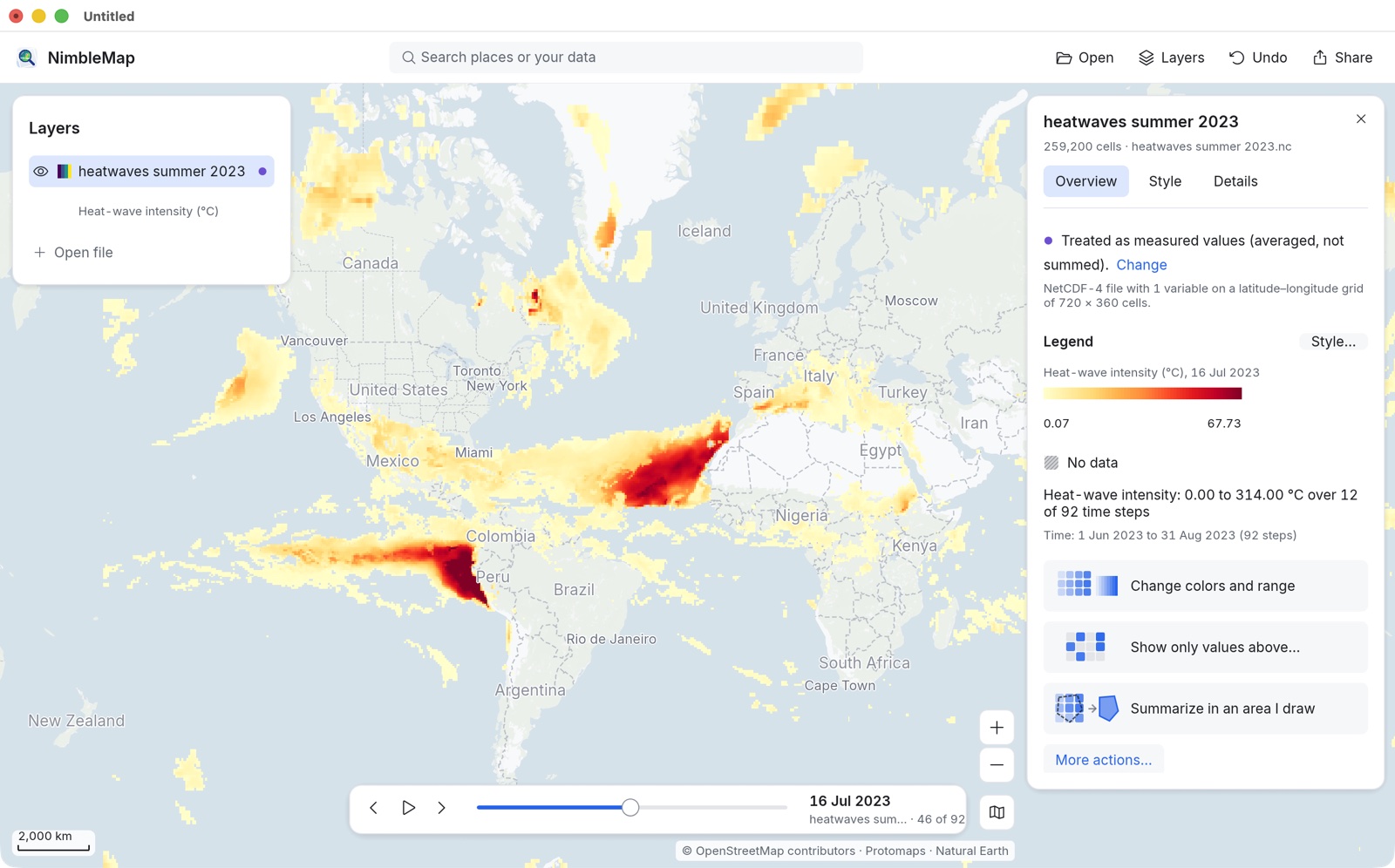
The 2023 heatwave over time
Play a summer of daily climate data with the time slider, read single cells, and export a finished map image.
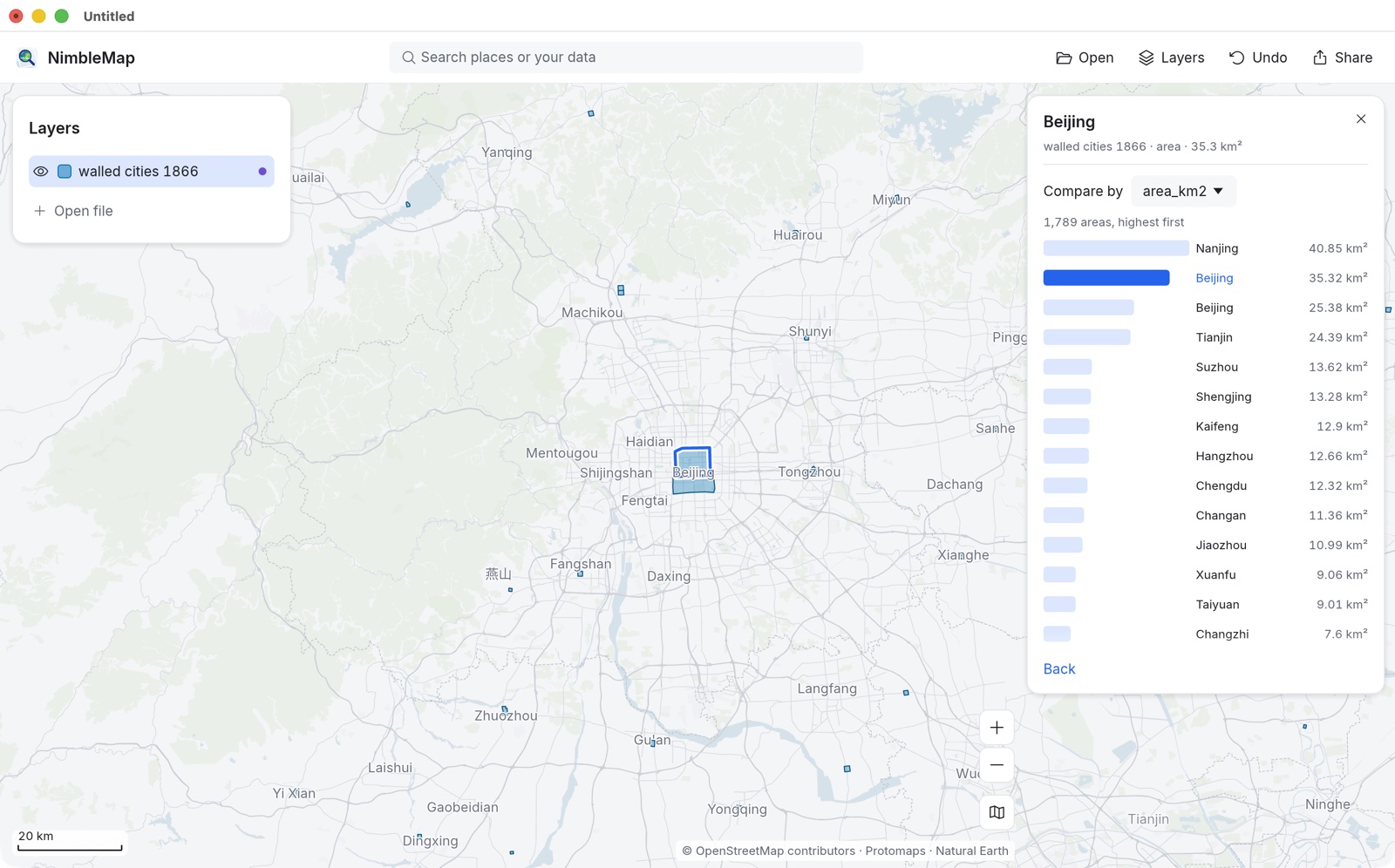
Walled cities of China, 1866
Put city walls on satellite imagery, rank them by size, filter to provincial capitals and share the result.
The window in one minute
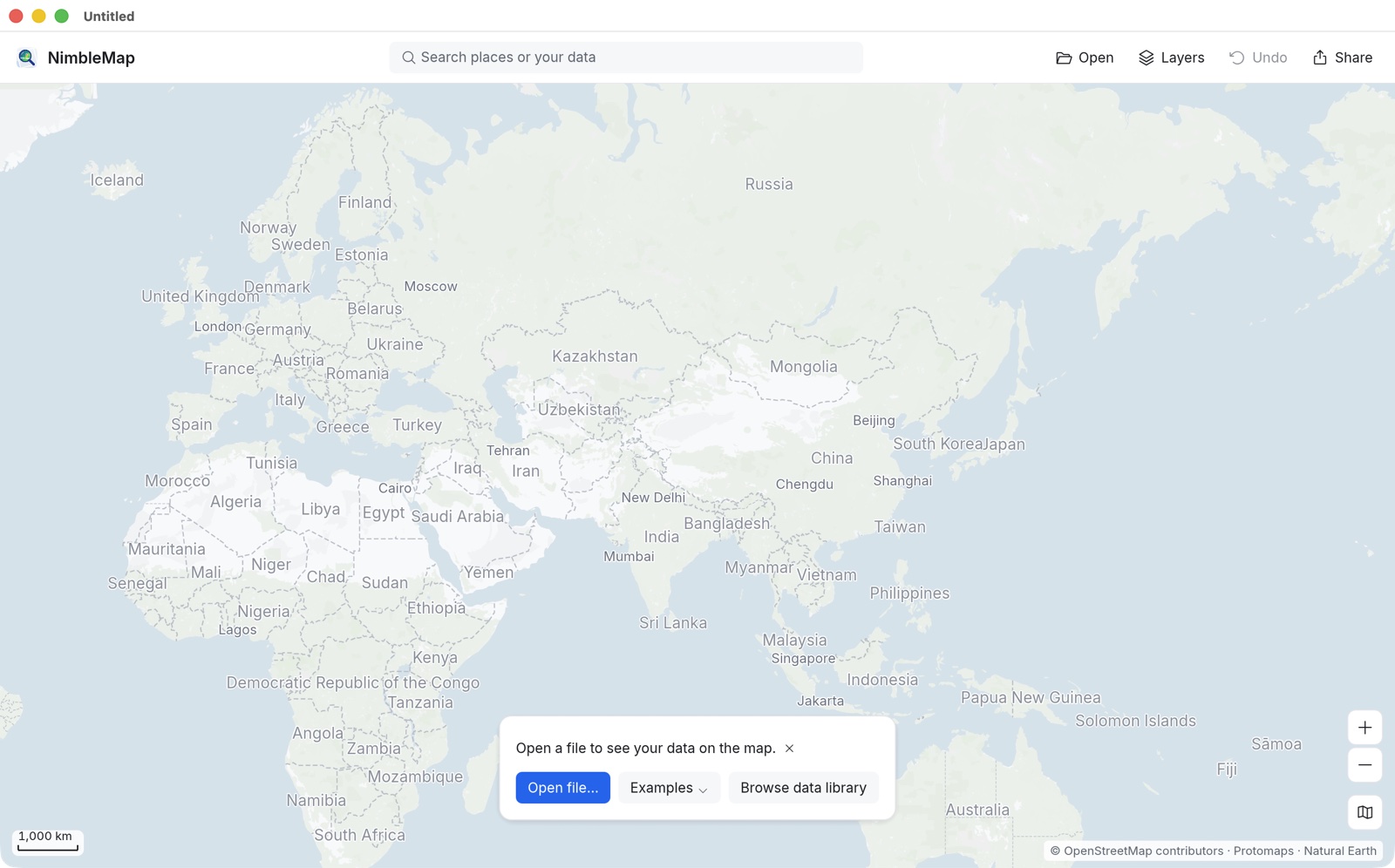
- Toolbar (top): the search box Search places or your data, then Open (⌘O), Layers (⌘L), Undo (⌘Z) and Share (⌘E).
- Layers panel (left): everything you have opened. The eye shows or hides a layer; drag to reorder; right-click for more.
- Card (right): appears when you click something. It shows the facts, where the thing stands among the rest, and up to three suggested buttons. A layer’s card has Overview, Style and Details tabs.
- Map controls (bottom right): Zoom in, Zoom out and the basemap button. The scale bar is at the bottom left.
- Undo everything: every change, from a colour to a filter to removing a layer, is one step of Undo. Your files are never changed.
Opening your own files
Drag files onto the window or use Open. NimbleMap reads CSV and Excel (with latitude and longitude columns), GeoJSON, Shapefile, GeoPackage, KML/KMZ, GPX, GeoTIFF and NetCDF. If the app had to assume something, such as which columns are coordinates, the card says so in one line with Change beside it. Points copied from Amap, Tencent or Baidu maps can be moved onto GPS coordinates; see GCJ-02.
Words you don’t know?
The glossary explains map words in plain English and says where each one appears in the app.